Menus for cafes and restaurants
One menu. Printed on the table, ordered on LINE.
Build your menu once in Menu Studio. Print clean, paginated menus for the table, and let customers order and pay by QR straight from your LINE account.
Free to use. No sign-up needed to start. Your draft saves in your browser.
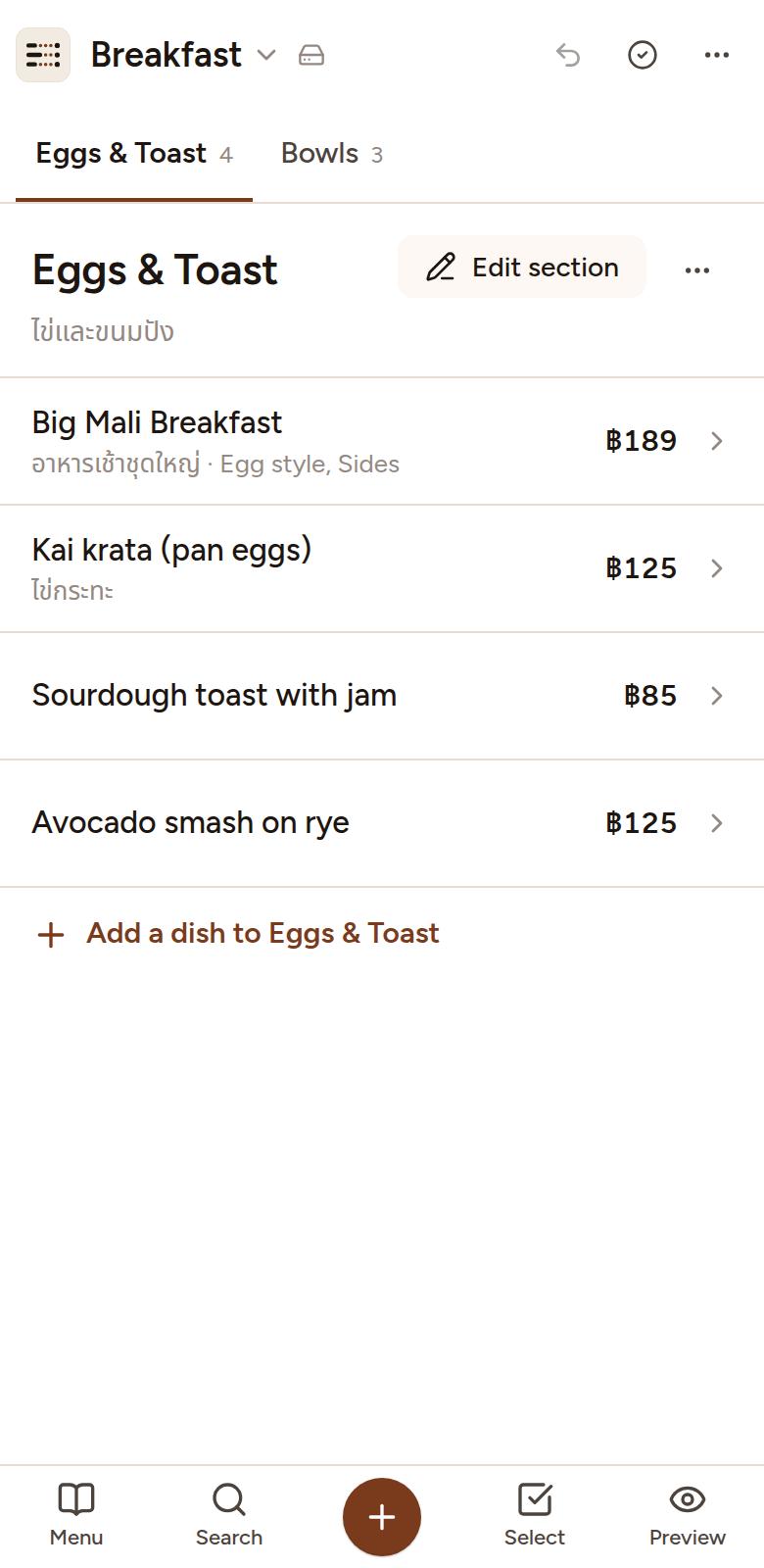
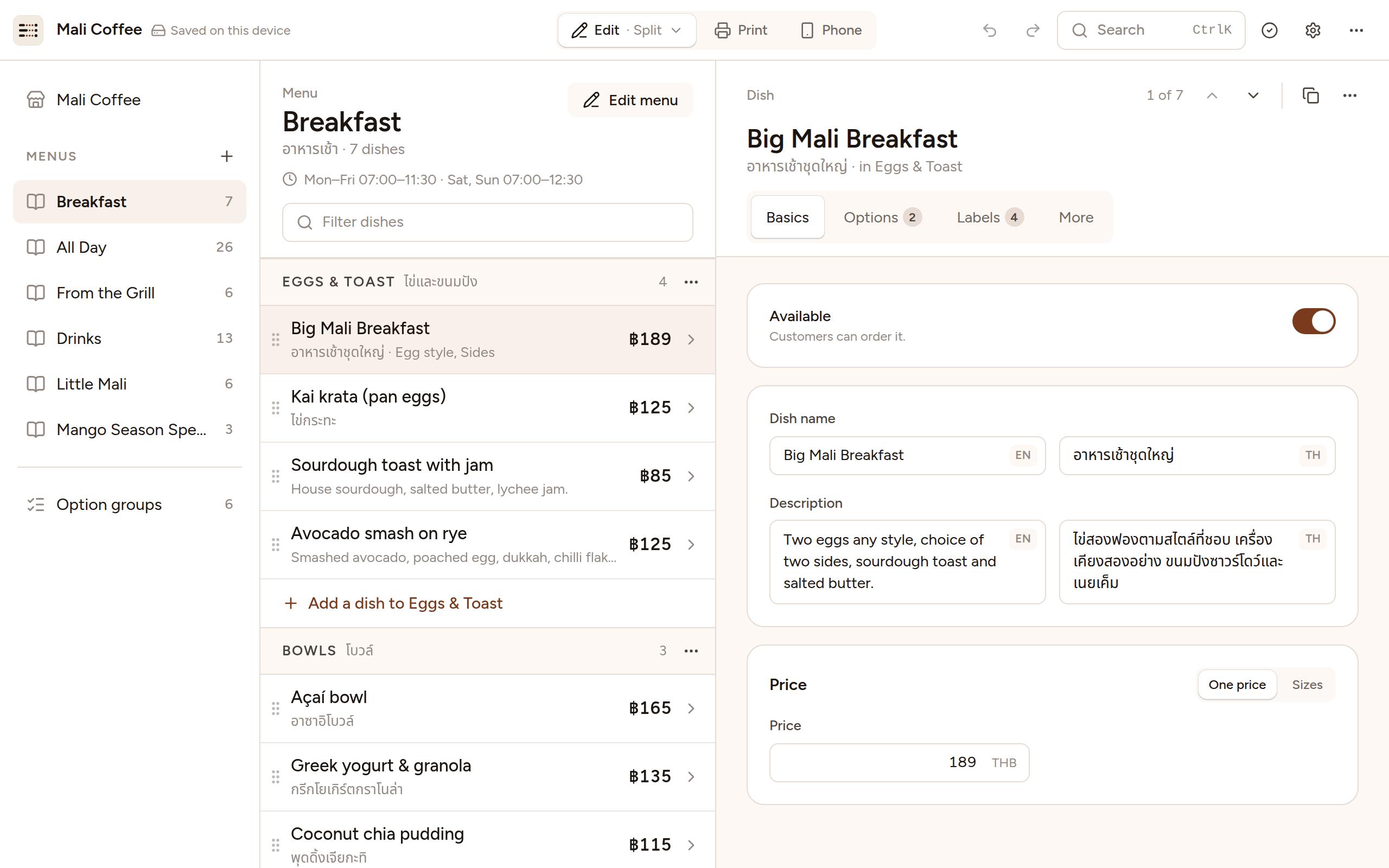
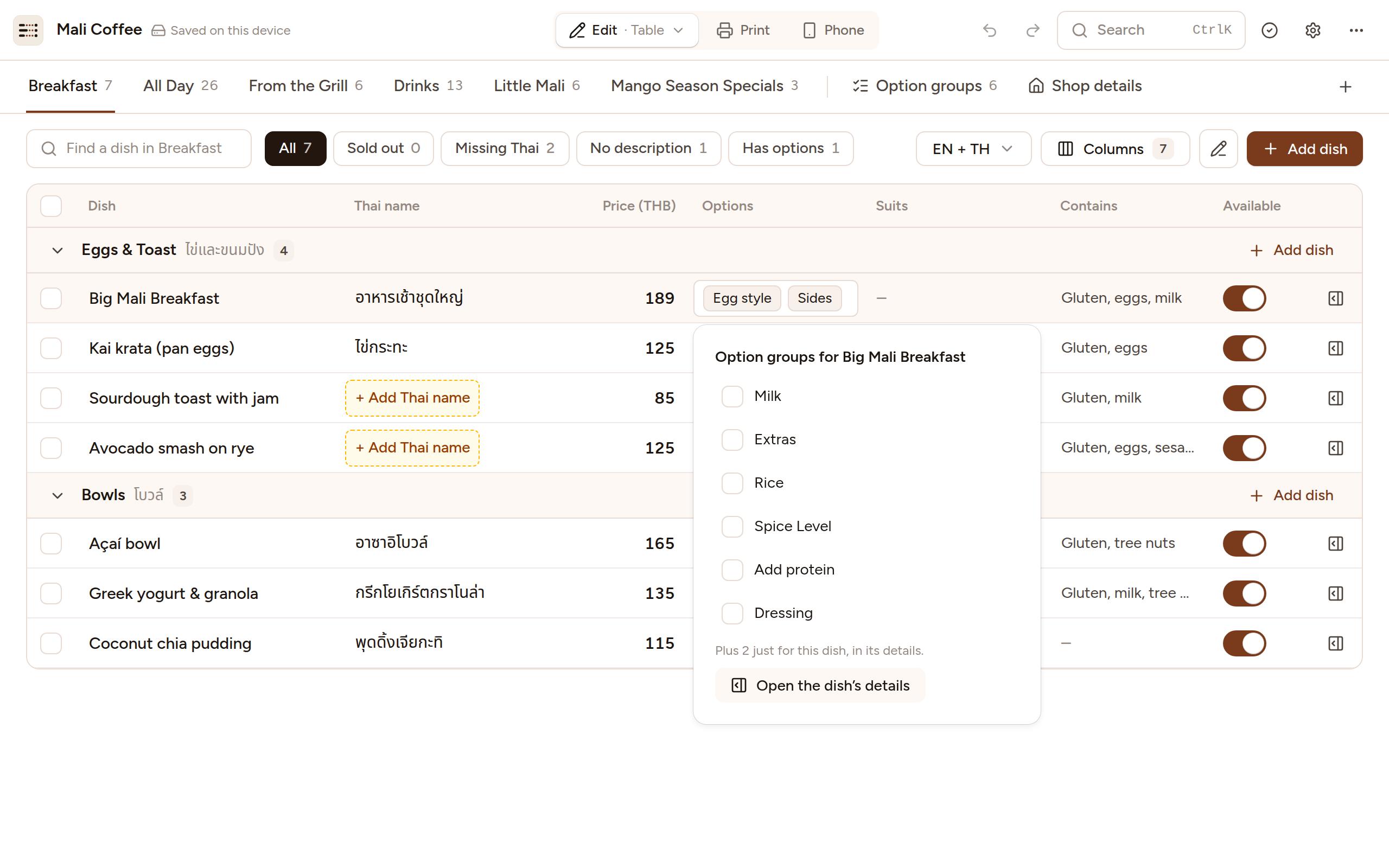
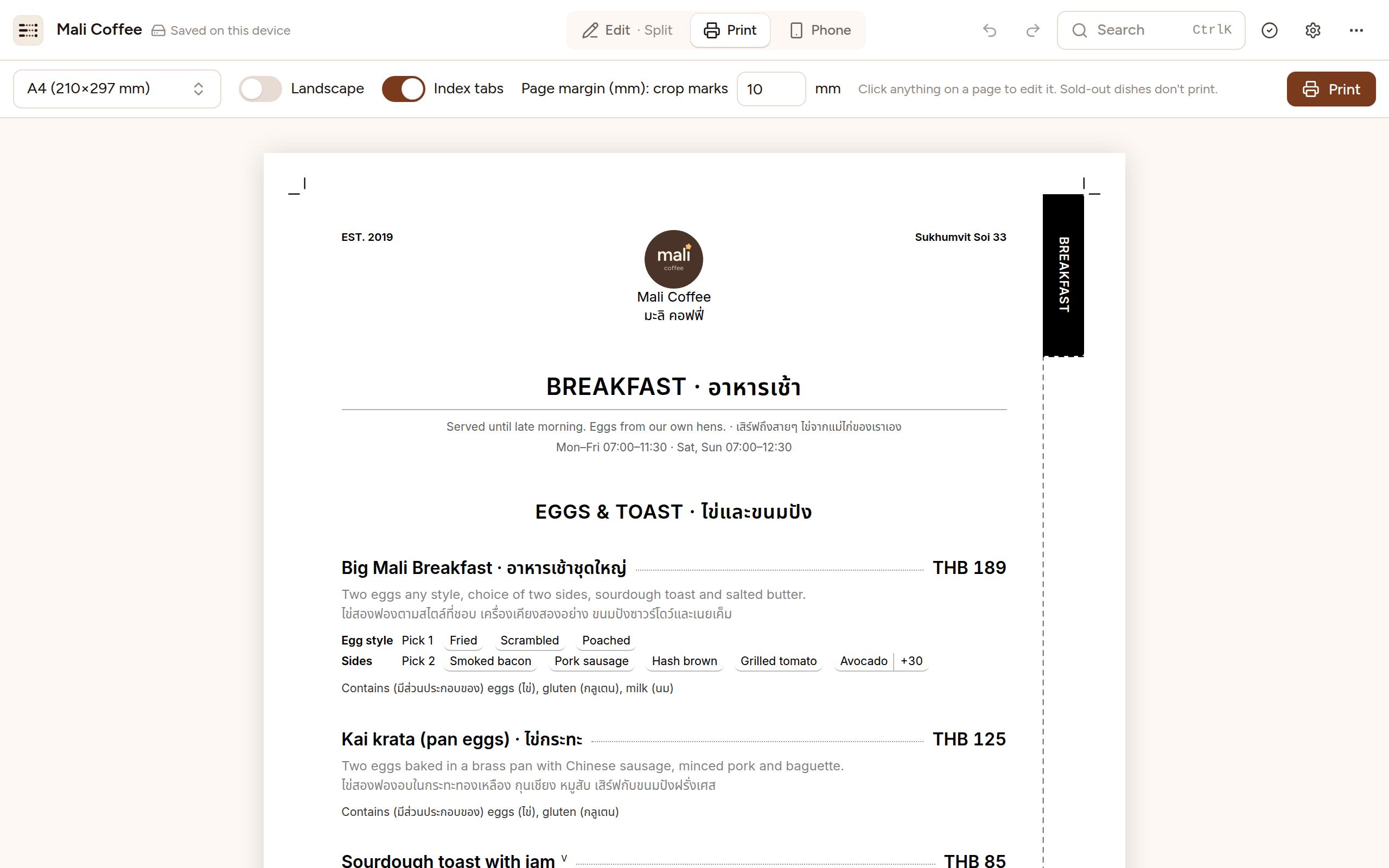
Your menu lives in too many places
Menu Studio keeps one menu that feeds all of them.
- The printed menu is out of date the moment a price changes.
- Orders arrive as chat messages you have to read, total up and confirm by hand.
- Customers ask “are you open?” and “how much is the large?” all day.
From menu to first order in three steps
Build your menu
Add sections, items, sizes and add-ons like milk choice or extra shots. Write it in two languages if you like, for example Thai and English.
Print it
Pick a paper size (A3 to A6, Letter, Legal) and get page-ready menus with section headers that never get stranded at the bottom of a page.
Publish to LINE
Add your Bill Payment details and get a link to set as your LINE ordering page. Customers browse, build a cart and pay by scanning a QR code.
Made for the way cafes work
Sizes and add-ons
Sizes with their own prices, plus required or optional choices, including discounts like “no cheese −฿10”.
Two languages, one menu
Every name and description can carry a Thai and an English version.
Sold out in one tap
Mark an item, a section or a whole menu unavailable. You can also schedule breakfast-only or weekend-only items.
Orders only while you’re open
Set your opening hours, and customers can’t place orders after closing.
QR payment, slips checked for you
Each order gets a Thai QR for its exact total. Customers upload their payment slip, and it’s checked automatically: the right amount, paid to your account, and never used before.
Allergens and dietary labels
Vegan, gluten-free, spice level and common allergens, shown right on the item.
Keep your menu up to date without breaking orders
Sign in with Google and your published menus are in your account. Edit a private draft, preview it, and publish only when you’re ready. Customers never see half-finished changes.
Sign inDraft and publish
Your edits stay private until you hit Publish.
Order history that stays accurate
Every order is tied to the exact menu that was live when it was placed.
Dashboard
See orders and sales over time, by menu, by day or by week.
What your customers see
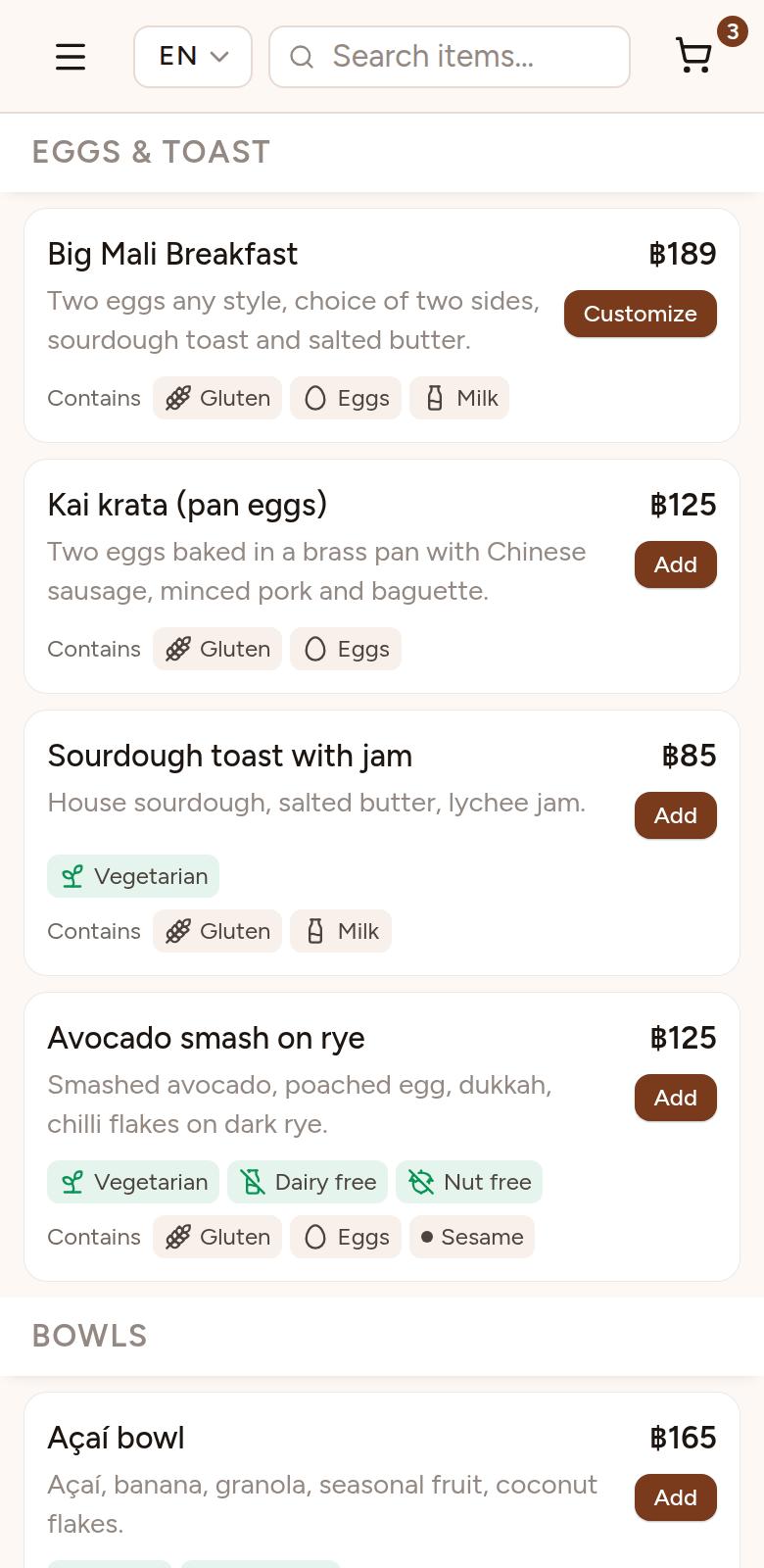
A fast, phone-sized menu inside LINE, opened from your LINE Official Account. They tap to add items and choose options, pay by scanning a Thai QR code in their banking app, and upload the slip. Once the payment checks out, their order confirmation is sent as a LINE message. If someone opens the link outside LINE, they’re pointed to your LINE account instead.
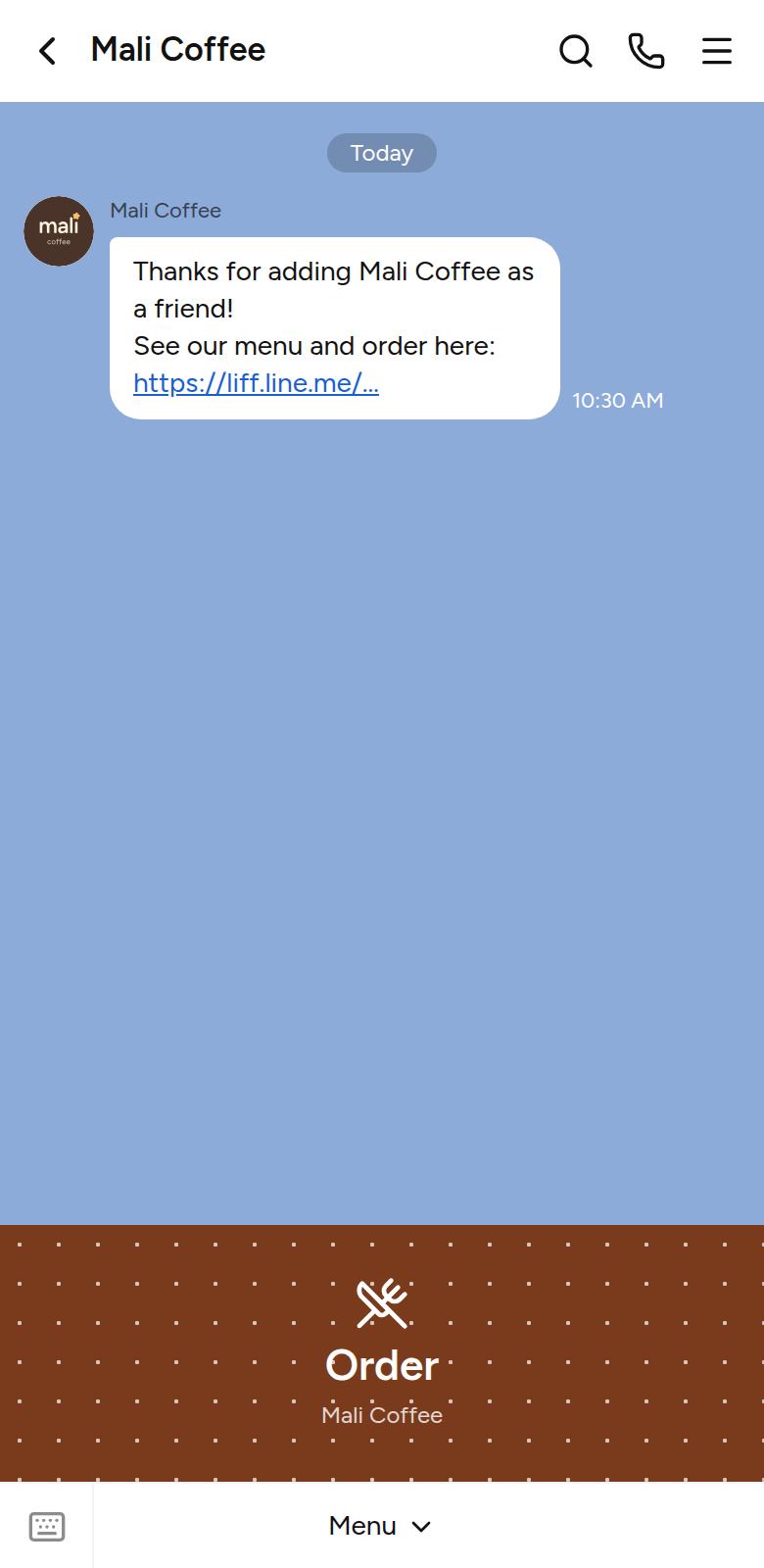
1Tap your menu link in your LINE Official Account: a rich menu button or a message.
2Browse the menu and add dishes to the cart.

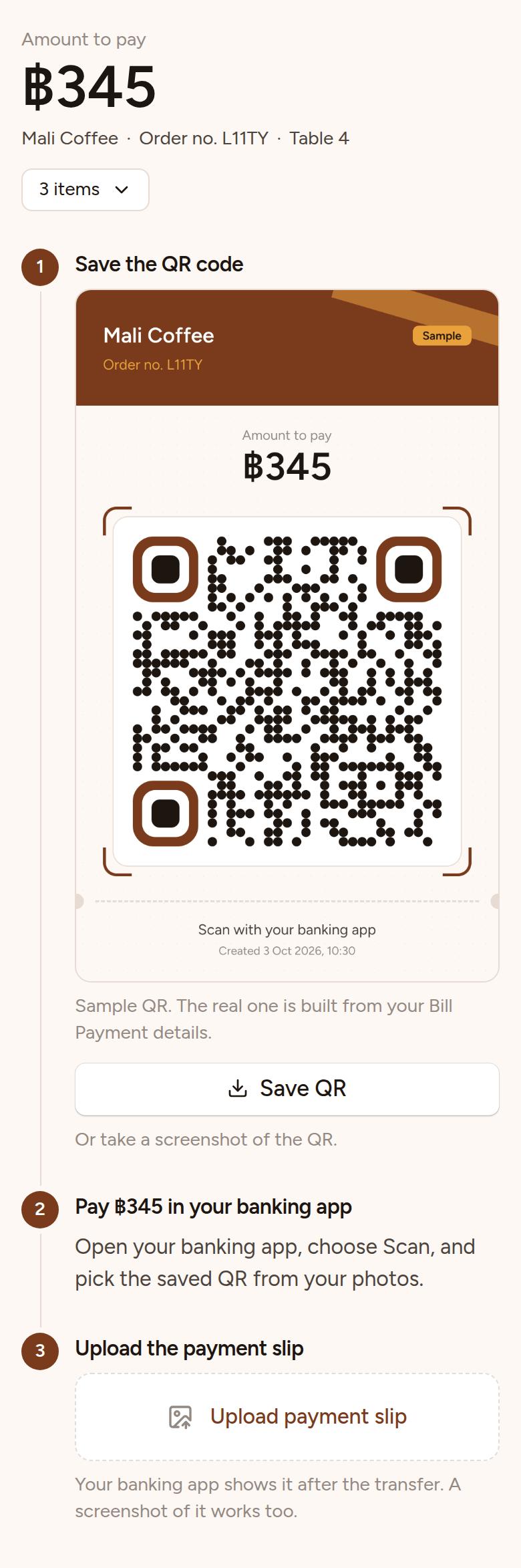

3Pay by Thai QR in a banking app, then upload the slip.
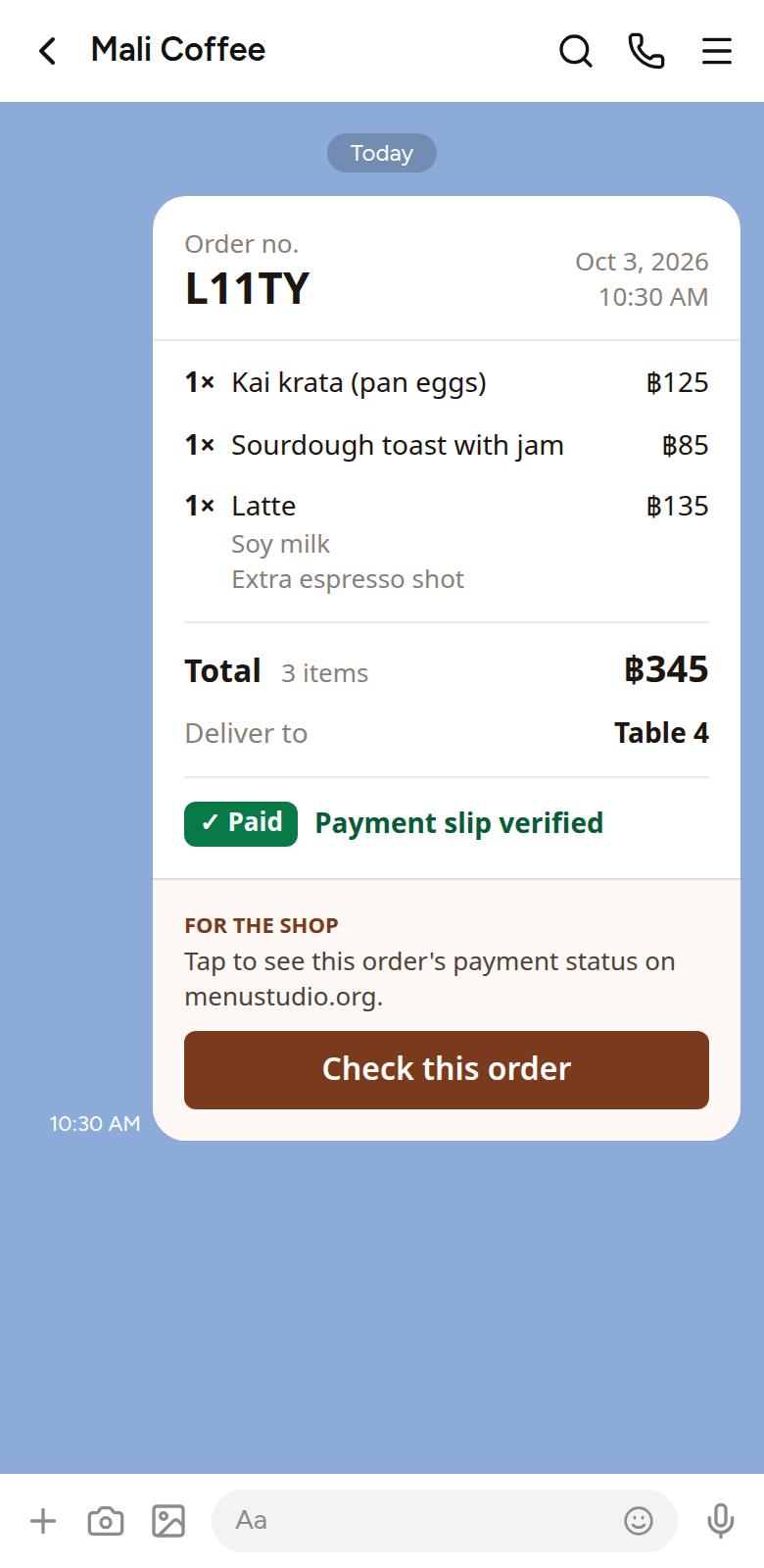
4The paid order arrives in your LINE chat.
For developers
Built on an open menu format
Under the hood, every menu is a document in the Menu Interchange Format. It’s an open, vendor-neutral JSON Schema for moving menus between POS systems, ordering apps, delivery platforms and websites. Prices are stored as whole numbers in the smallest currency unit, and text is localized per field.
Questions, answered
Put your menu in front of customers today.
It’s free, and your first menu takes minutes.