Build your menu
Getting started
What Menu Studio does, a tour of the editor, and where your work is kept.
What Menu Studio does
You keep one menu in Menu Studio and use it two ways: printed for the table, and as an ordering page inside LINE, where customers order and pay by QR code. Change a price once and both stay in step.
- Build your menu in the editor: dishes, prices, sizes and options, in one language or two.
- Print it on the paper size you use.
- Publish it to LINE and get a link that customers open to order and pay.
Building and printing need no account. You sign in with Google only to manage a menu after you've published it.
Open the editor
- On the home page, choose Start your menu, or go straight to the editor.
- The first time, a short welcome asks how you'd like to start: Start blank, or Start from the example, a sample cafe menu that shows how a finished menu works.
- You can start over at any time: open More (⋯) at the top right and choose New blank or New from example.
Important: Starting a new menu replaces the one in the editor. Export the current one first if you want to keep it (see below).
The editor at a glance
On a computer, the editor opens in Split, with four areas:
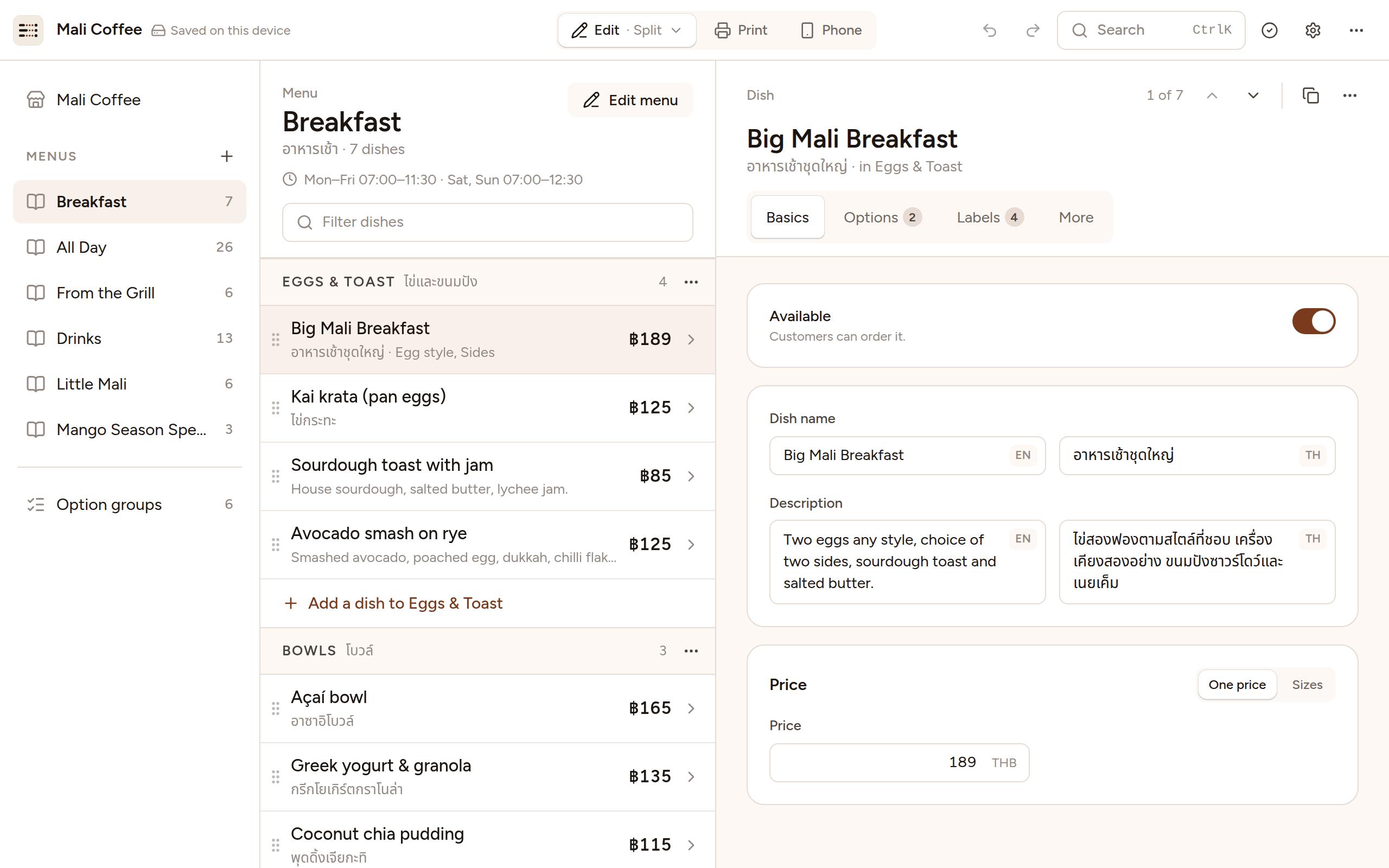
- 1Top bar: Switch between Edit, Print and Phone (Edit also picks the layout); undo, search, see problems, and open Settings and the More (⋯) menu.
- 2Your shop and menus: Your venue, your menus with how many dishes each holds, and the option groups. Click a menu to see its dishes.
- 3The dishes: The menu's dishes, section by section, with their prices. Click one to open it; drag the ⠿ handle to reorder.
- 4The open dish: Everything about what you opened, beside the list: its names in each language, price, sizes, options, labels, when it's sold, photos.
Note: On a phone or a small screen, the editor is always List: your sections as tabs and their dishes below, each opening as a page, with a bar along the bottom holding Menu, Search, +, Select and Preview. On a computer you can pick List too. See Editing on a phone.
Where your work is saved
As you type, the editor saves your menu in this browser, on this device, and the top bar says Saved on this device. Nothing is sent anywhere until you publish.
- To keep a copy, or to move your menu to another computer, open More (⋯) and choose Export JSON. Open the file again later with Import….
- Clearing your browser's data, or working in a private window, loses the menu. Export a copy first.
- Once you publish a menu, its draft is kept on Menu Studio's server instead, so you can edit it from any device. See Managing your published menu.
What you need to take orders on LINE
Printing needs nothing more. To take orders and payments through LINE, you'll also need:
- A LINE Official Account for your shop. Customers open your menu from its chat, and their orders arrive there.
- Your shop's Bill Payment details from your bank: a Biller ID and a reference. Customers pay straight into your account; the money never passes through Menu Studio.
- Prices in Thai baht (THB).
- A Google account, to publish the menu and manage it afterwards.