Sell on LINE
Publishing to LINE
Turn your menu into an ordering page inside LINE: add your payment details and delivery spots, then share the link.
Before you start
- Your menu has No problems, its prices are in Thai baht, and it has at least one dish. See Fix problems before publishing.
- You have your shop's Bill Payment details from your bank: the Biller ID (up to 15 digits) and Reference 1, and Reference 2 if your bank gave you one. A picture of your bill payment QR code works too.
- You're signed in with your Google account. Publishing puts the menu in your account, so you need to sign in first. See Sign in.
- Your opening hours are right, since customers can only order while you're open.
Enter your payment details
- In the editor, open More (⋯) and choose Publish to LINE…. Your menu is checked and carried over, so the first step is already done. (You can also open the Publish page and upload a menu file you exported.)
- Under Bill Payment Info, type the Biller ID and references on Manual Entry, or switch to Upload QR and drop in a picture of your bill payment QR code to fill them in.
- Press Continue.
Every order's QR code is built from these details, so customers pay straight into your account.
Add delivery locations
List the places customers can have their order brought to: table numbers, rooms, or “Takeaway”. Customers must pick one before they can place an order. Add location adds another.
LINE Official Account is optional: enter your account's ID, such as @yourcafe. Anyone who opens your menu link outside the LINE app is shown it, so they can still find you.
Get your menu link
Press Generate LIFF URL. Menu Studio publishes your menu and gives you its link, starting with https://liff.line.me/. Copy it with the button beside it. This link is your menu on LINE.
Note: The menu is yours from the moment it's published: it's already in My menus, where you edit it, see its orders and change its payment details. Open in my menus takes you there. See Managing your published menu.
Share it with customers
Put the link where customers already talk to you: your LINE Official Account. In LINE Official Account Manager you can add it to a rich menu button, such as “Order”, or to your greeting message. Customers tap it and your menu opens inside LINE.
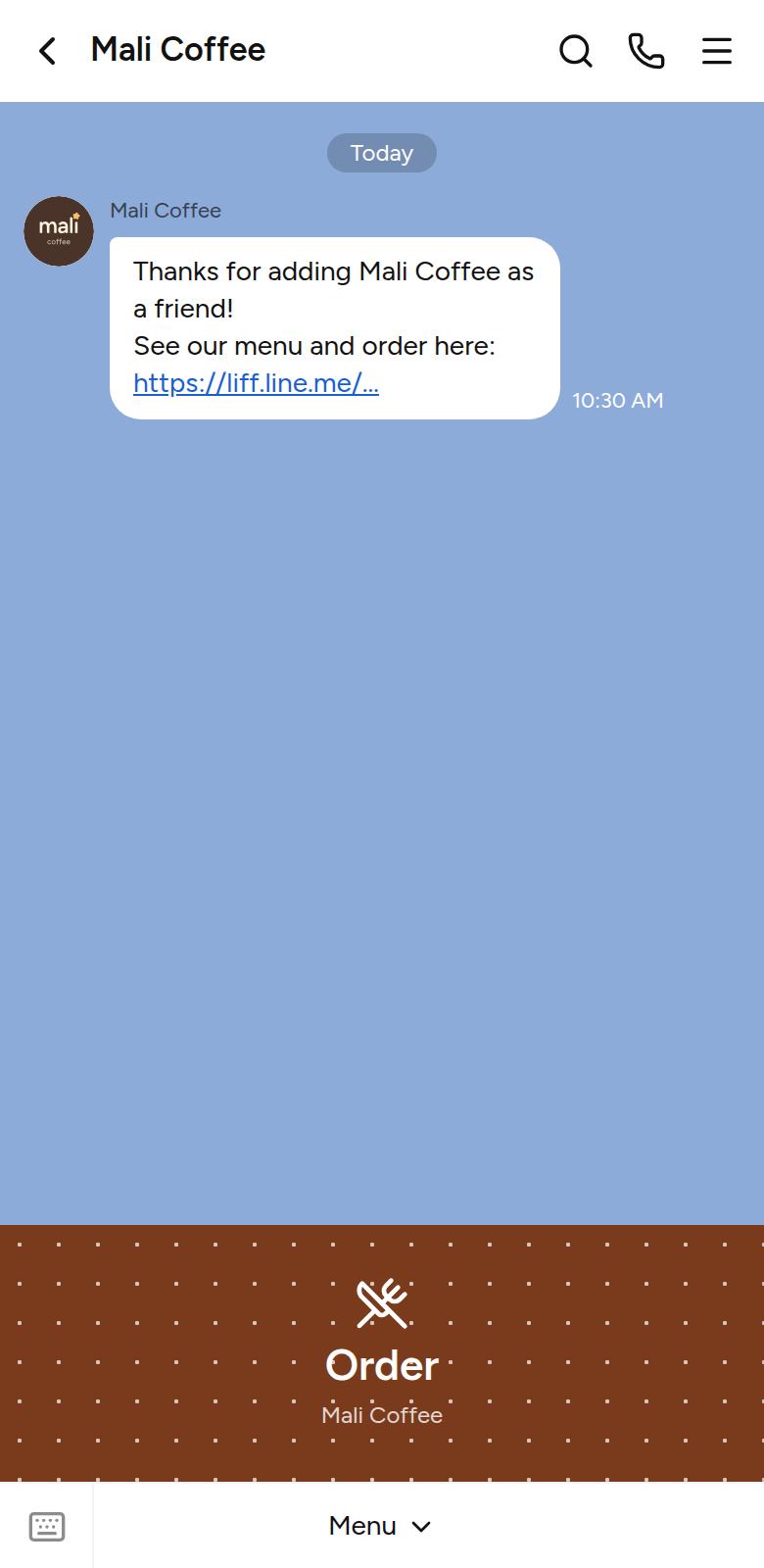
Note: The order confirmation is sent into the chat the customer opened the menu from. Opening it from your LINE Official Account means every order lands in your chat.
The ordering page only works inside the LINE app. Opened in a web browser, it asks people to open it in LINE and points them to your LINE Official Account, if you added one.
Changing the menu later
Don't publish again to change prices or dishes: every publish creates a new, separate link, and customers using the old one would still see the old menu. Instead, edit it from My menus; the link stays the same. See Managing your published menu.