Sell on LINE
Orders and payments
What your customers see when they order in LINE, how their payment is checked, what reaches you, and what to do with each order on your Orders page.
How customers order
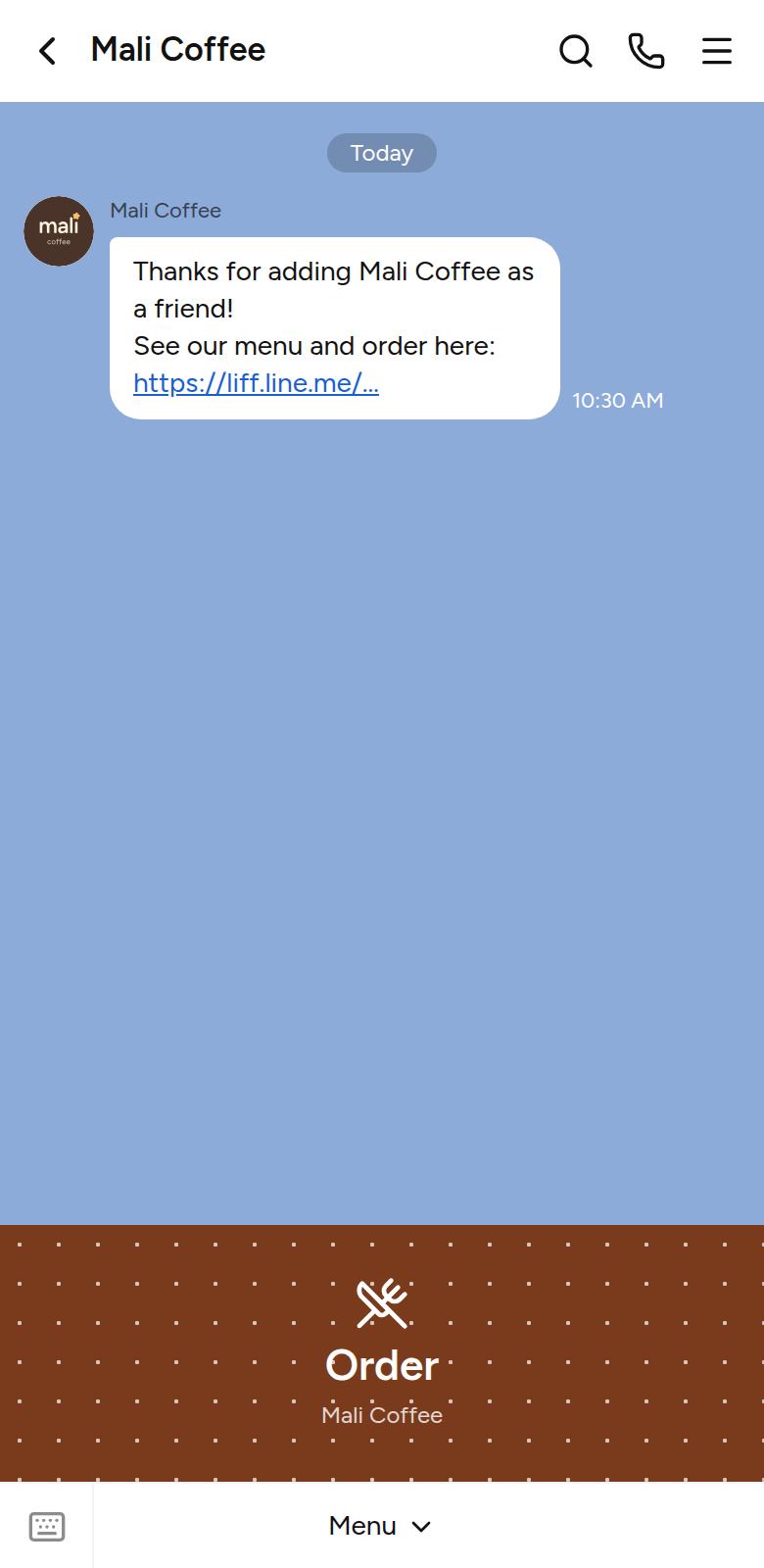
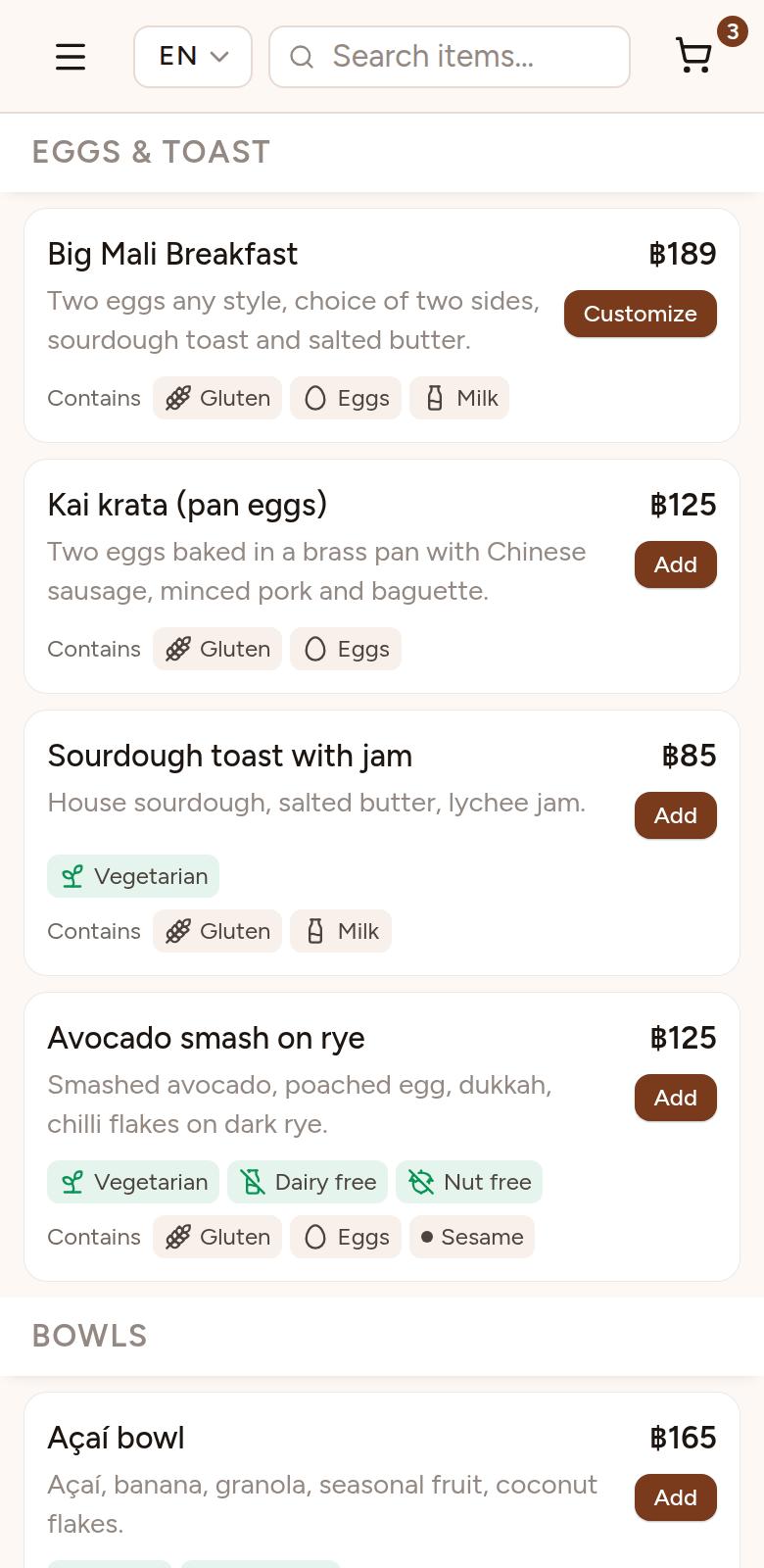


- The customer taps your menu link in your LINE Official Account, on a rich menu button or in a message, and picks a language. Share it with customers says where to put it.
- They tap Add on a dish, or Customize on one with sizes or options, to put it in the cart.
- In the Cart, they choose their delivery location and tap Place Order.
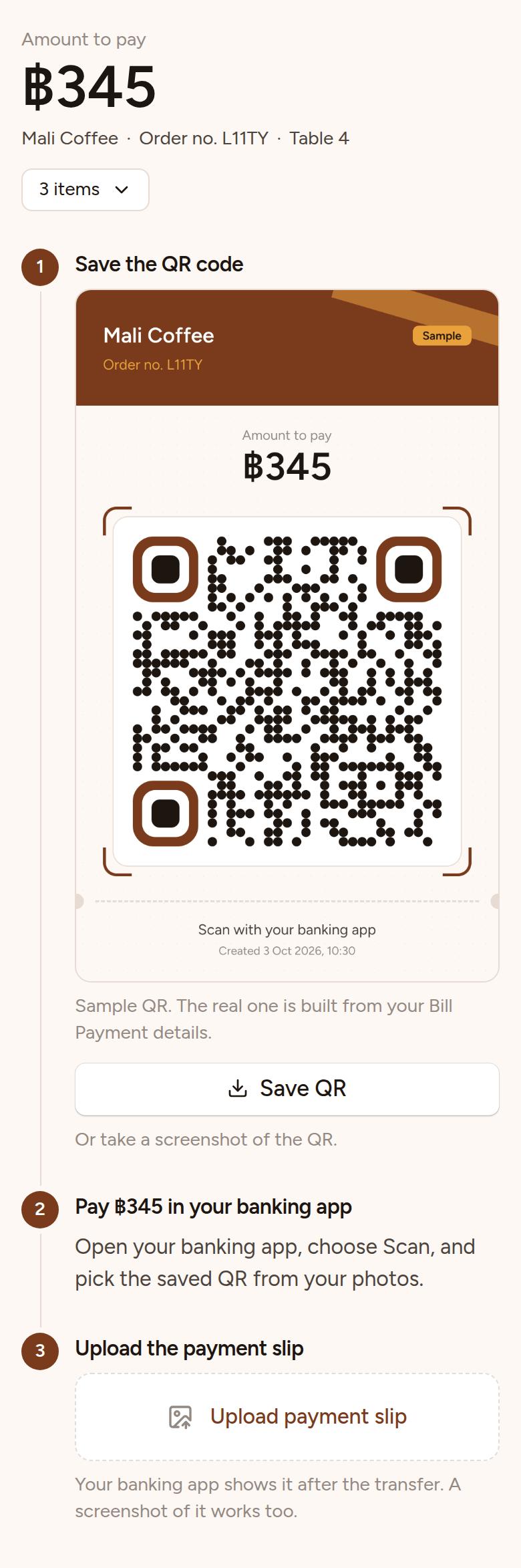
- They pay the amount shown by QR code in their banking app, upload the slip and tap Confirm payment.
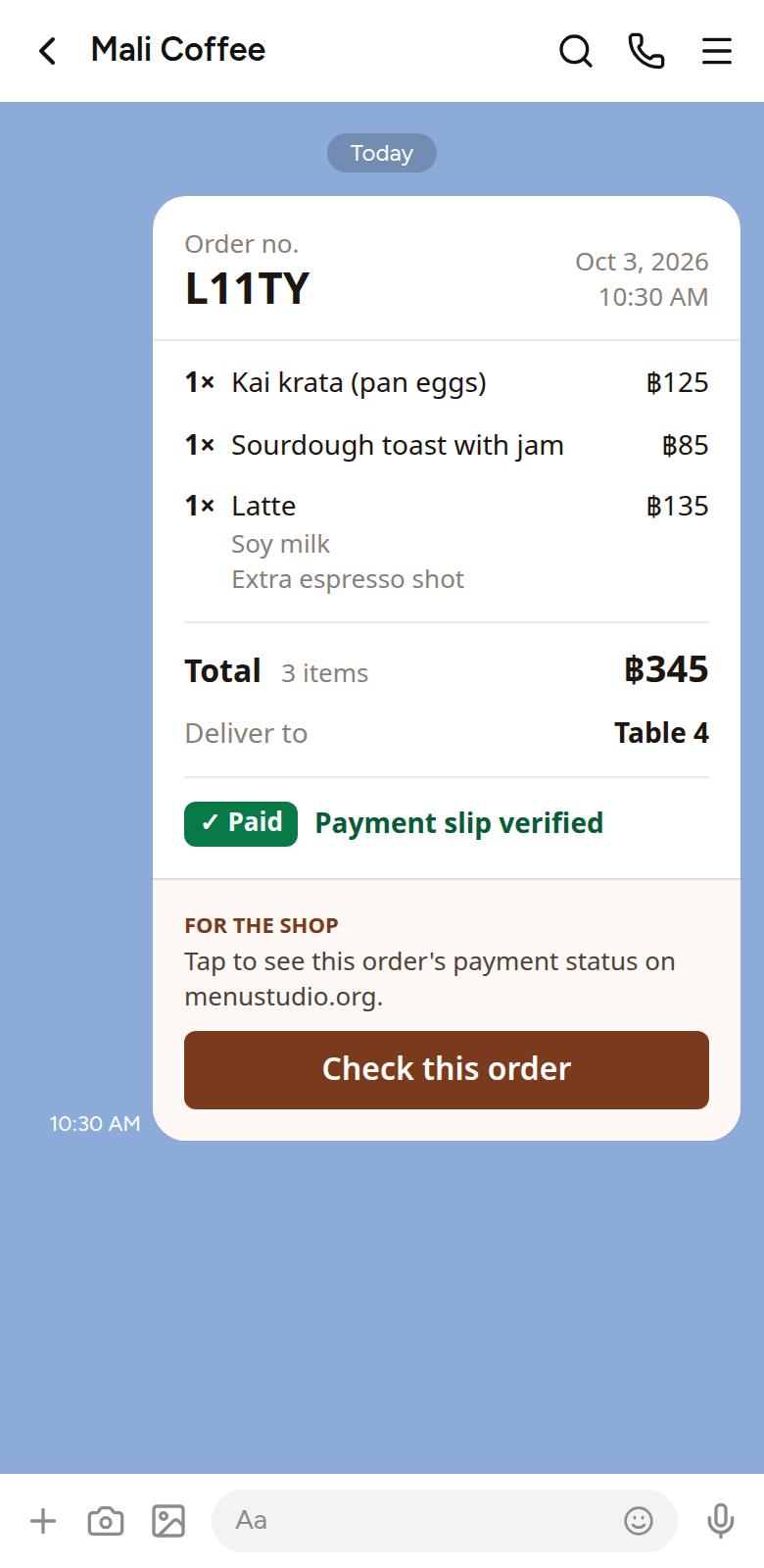
- Once the payment checks out, the order is sent to your chat as a LINE message and the menu closes.
Note: Each dish shows its dietary labels, allergens and spice, and each option shows its allergens while the customer customizes. Customers are told this comes from you and to tell your staff about a severe allergy, so keep it up to date and make sure staff know what's in each dish.
You can walk through the same screens yourself in the editor's Phone mode.
How customers pay
Each order gets its own Thai QR code for the exact total, paid to your Bill Payment account. The payment screen walks customers through three steps:
- Save the QR code. The QR is shown on a card with your shop's name, the amount and the order number. Save QR opens that card in the phone's own browser: on an iPhone they press and hold it and tap Save to Photos (pressing and holding the card right in LINE works too); on Android it downloads. A screenshot works as well.
- Pay in their banking app: choose Scan, then pick the saved QR from their photos.
- Upload the payment slip their bank shows after the transfer (a screenshot of it is fine), then tap Confirm payment.
Note: Paying means leaving LINE for the banking app. When the customer comes back and opens your menu again, it returns straight to their payment, so the order isn't lost. Change order takes them back to the cart instead.
How payments are checked
Menu Studio reads every slip before it accepts the order:
- The amount must equal the order's total.
- The money must have gone to your Bill Payment account.
- A slip can pay for one order only; using it again is refused.
Some banks take a few minutes to confirm a transfer. The customer is then asked to wait and confirm again with the same slip. If a slip can't be read, they're asked for a clearer picture.
Note: Each menu gets 30 automatic checks free every month, then they use credits. If both run out, slips wait for you to check instead. See Slip checks and credits.
What you receive
A paid order arrives as a LINE message in the chat the customer ordered from, normally your LINE Official Account. It shows the order number, each dish with its size and options, the total, where to deliver it, and a Paid badge with Payment slip verified, unless automatic checks have run out: then the badge says Slip sent, with The shop will check it, a picture of the slip follows it, and the order waits for you on your Orders page as Slip to check.
If LINE can't send the message, the customer is given the order as text to copy and send you, and opening the menu again offers to send it once more.
The message is sent from the customer's own LINE, so it tells you an order came in; on its own it doesn't prove it was paid. Anyone can type or copy a message that looks the same. That's what the Check this order button at the bottom, under For the shop, is for: it opens a page on Menu Studio that reads the order from our records, not from the message. Before you hand anything over:
- Tap Check this order at the bottom of the message.
- Check the address at the top of the page is menustudio.org.
- Check it says Paid, with the same order number. Hand over what the page lists, not what the message lists.
Important: A message without the button, or whose button opens another site, didn't come from Menu Studio. Treat that order as unpaid until you find it, paid, on your Orders page. See Finding an order.
Your Orders page
Orders lists every order on all your menus, newest first, with its dishes, where to deliver it, the total and its status. The line at the top shows how many automatic slip checks and credits you have left. The tabs split the list four ways:
- All
- Every order, whatever its status.
- Needs you
- Orders from the last 7 days that only you can settle: Pay at the counter and Slip to check. The number on the tab is how many are waiting. Start here.
- Paid
- Every paid order, however it was paid.
- Unpaid
- Every other order not paid yet: customers still paying, orders never paid, and anything older than 7 days that was still waiting for you.
Needs you, Paid and Unpaid never overlap, so each order is in exactly one of them. Only paid orders count in your dashboard.
Order statuses and what to do
Each order shows one of these statuses. Here's what each means and what, if anything, you need to do:
- Paid · slip checked automatically
- The slip was checked with the bank and the money reached your account. Nothing to do: prepare and deliver the order. These are the orders that used a slip check, and View slip shows the slip.
- Paid · marked paid by you
- You marked it paid yourself: a คนละครึ่ง order paid at your counter, or a slip you checked. Nothing more to do.
- Paid
- An older order, paid before Menu Studio recorded how it was checked. Nothing to do.
- Pay at the counter
- A คนละครึ่ง order. The customer comes to your shop and shows you the order number. Take the payment through เป๋าตัง, then tap Mark as paid.
- Slip to check
- The customer paid by QR and uploaded a slip, but automatic checks had run out, so the slip waits for you. Tap View slip, then open your banking app and make sure that amount reached your account. If it did, tap Mark as paid. If it didn't, don't mark it: message the customer in your LINE chat.
- Customer is paying
- Placed in the last 3 hours, but no slip yet: the customer is probably in their banking app. Wait, and don't prepare it yet. Once their slip checks out it turns Paid by itself, and the order arrives in your chat.
- Not paid
- No slip came within 3 hours, so the customer gave up or ordered again. Nothing to do, and don't prepare it. It can't be marked paid: if a customer says they did pay, check your banking app and settle it with them directly.
Important: Mark as paid asks you to confirm, and can't be undone. Mark an order paid only once the money is in your account or in your hand: a picture of a slip on its own isn't proof.
Tip: A LINE message with a Slip sent badge is an order waiting under Slip to check, not a paid one yet.
Finding an order
Under the tabs are a search box and filters. They work together, and with the tab you're on:
- Order no.: type the number from the customer's LINE message, or just part of it. The list narrows as you type.
- Any time (the date): Today, Yesterday, Last 7 days, Last 30 days, or Custom range, which adds From and To boxes for the first and last day. Days follow Thai time.
- All menus: pick one menu. It's there only if you have more than one.
- Any payment: pick QR payment or คนละครึ่ง. It's there only if a menu accepts คนละครึ่ง.
A filter in use is highlighted, and Clear next to the filters puts them all back (it keeps your tab). On a phone, swipe the filters sideways to see them all.
At the bottom of the box you'll see how many orders match and how much of that is paid, for example for today's takings. Export CSV downloads the matching orders as a spreadsheet file that opens in Excel or Google Sheets.
Tip: Your tab and filters are kept in the page's address, so you can bookmark a view you use often, such as Needs you for Today.
When customers can't order
- You're closed
- Outside your opening hours, customers see a closed screen with the time you next open.
- A dish sold out
- Sold-out dishes can't be added. If one sells out while it's in a cart, the customer is asked to remove it before ordering.
- Prices changed
- If you publish new prices while someone is ordering, their order isn't placed until they've reviewed the new total.
- Opened outside LINE
- In a web browser the menu asks people to open it in LINE, and shows your LINE Official Account as a link on phones or a QR code on computers.